Skip to contents

Installation and Loading

# Install from GitHub
devtools::install_github("favstats/dashboardr")

Introduction: A Grammar of Dashboards

Just as ggplot2 gave us a grammar of graphics, dashboardr provides a grammar of dashboards.

What is a Grammar?

A grammar provides:

  • Building blocks - Fundamental components you can combine
  • Composition rules - How components fit together
  • Layering - Build complex structures from simple pieces
  • Consistency - Predictable behavior across contexts

dashboardr’s Grammar

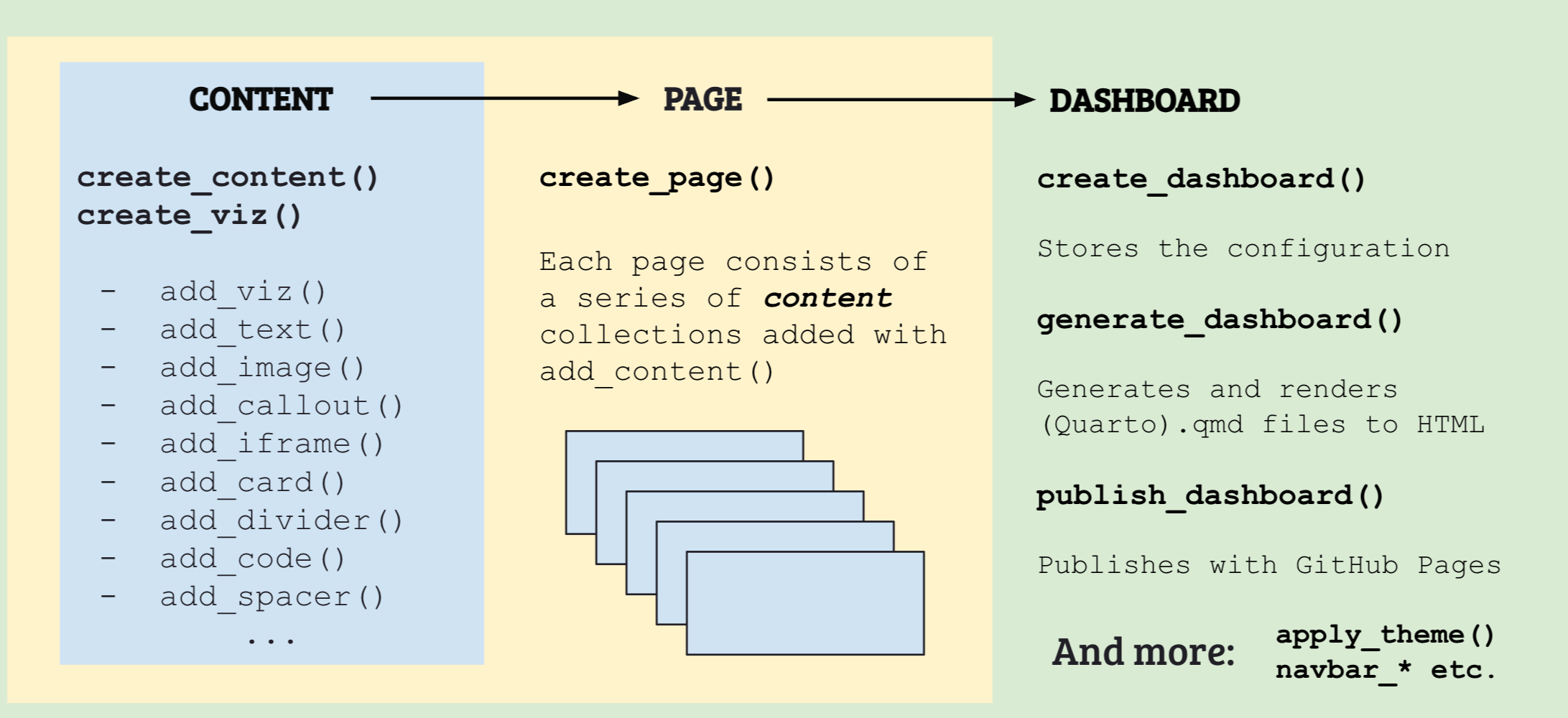
dashboardr gives you a complete grammar with six core layers:

  1. Data - What you’re working with

    # Pass data to pages
    add_page("Analysis", 
      data = survey_data,
      weight_var = "survey_weight",  # Optional weighting
      filter = ~ wave == 1            # Filter subsets
    )
  2. Content - Unified system for visualizations, text, images, and more

    # Mix everything together in one fluent pipeline
    content <- create_viz(type = "histogram", color_palette = c("#3498DB")) %>%
      add_viz(x_var = "age", title = "Age", tabgroup = "overview") %>%
      add_text("## Analysis Results", "", "Key findings from the data...") %>%
      add_callout("Important: Sample size is 1000 respondents", type = "note") %>%
      add_viz(x_var = "income", title = "Income", tabgroup = "overview") %>%
      add_image("charts/trend.png", caption = "Quarterly trends") %>%
      add_accordion("Methodology", text = "Details about our approach...")

    Functions: create_viz(), add_viz(), add_text(), add_image(), add_callout(), add_accordion(), add_card(), add_divider(), add_code(), add_spacer()

  3. Layout - How you organize content

    # Nested hierarchies with tabgroups
    add_viz(x_var = "age", tabgroup = "analysis/demographics/age")  # Creates nested tabs
    
    # Pagination for large dashboards
    content %>% add_pagination()  # Splits into multiple pages
    
    # Custom tab labels with icons
    content %>% set_tabgroup_labels(
      overview = "{{< iconify ph:chart-bar-fill >}} Overview",
      demographics = "{{< iconify ph:users-fill >}} Demographics"
    )

    Functions: add_pagination(), set_tabgroup_labels(), combine_viz() (or + operator)

  4. Navigation - How users move between pages

    # Top navbar with pages
    create_dashboard(...) %>%
      add_page("Home", is_landing_page = TRUE) %>%
      add_page("Analysis") %>%
      add_page("About", navbar_align = "right")
    
    # Dropdown menus for related pages
    create_dashboard(...) %>%
      navbar_menu("Reports", pages = c("Monthly", "Quarterly"), icon = "ph:file-text")
    
    # Sidebar navigation for many pages
    create_dashboard(...) %>%
      sidebar_group(id = "analysis", pages = c("Overview", "Details", "Trends"))

    Functions: add_page(), navbar_menu(), sidebar_group()

  5. Styling - How it looks

    # Apply complete themes (PRIMARY styling method)
    dashboard <- create_dashboard("My Dashboard", "output") %>%
      apply_theme(theme_academic(accent_color = "#8B0000")) %>%
      add_page("Analysis", data = data, content = content)
    
    # Available themes
    apply_theme(theme_ascor())       # UvA/ASCoR branding (also: theme_uva())
    apply_theme(theme_academic())    # Academic/research style
    apply_theme(theme_modern())      # Modern tech style
    apply_theme(theme_clean())       # Minimal clean style
    
    # Override ANY theme parameter
    dashboard %>% apply_theme(
      theme_modern("purple"),
      navbar_bg_color = "#8B0000",      # Custom navbar color
      navbar_text_color = "#FFFFFF",    # Navbar text color
      mainfont = "Inter",               # Font family
      fontsize = "18px",                # Base font size
      linkcolor = "#0066CC",            # Link color
      max_width = "1400px"              # Page width
    )
    # Supports: navbar_bg_color, navbar_text_color, navbar_text_hover_color,
    #           mainfont, fontsize, fontcolor, linkcolor, monofont,
    #           monobackgroundcolor, linestretch, backgroundcolor, max_width,
    #           margin_left, margin_right, margin_top, margin_bottom
    
    # Styling can also be applied at:
    # - Dashboard level: create_dashboard(theme = "flatly", tabset_theme = "modern")
    # - Page level: add_page(icon = "ph:chart-line", overlay = TRUE)
    # - Content level: create_viz(color_palette = c("#3498DB"), icon = "ph:chart-bar")

    Functions: apply_theme(), theme_ascor(), theme_academic(), theme_modern(), theme_clean()

  6. Assembly - Putting it all together

    # The complete pipeline
    dashboard <- create_dashboard(title = "My Dashboard", output_dir = "output") %>%
      add_page("Home", text = md_text("# Welcome!"), is_landing_page = TRUE) %>%
      add_page("Analysis", data = survey_data, content = content) %>%
      generate_dashboard(render = TRUE, open = "browser")

    Functions: create_dashboard(), add_page(), generate_dashboard(), md_text()

By combining these through a fluent piping interface (%>%), you build complex dashboards from simple, composable parts.

Quick Start: Your First Dashboard in 5 Minutes

Let’s create a complete dashboard from scratch:

# Sample data
survey_data <- data.frame(
  age = sample(18:80, 300, replace = TRUE),
  income = rnorm(300, mean = 50000, sd = 15000),
  satisfaction = sample(1:5, 300, replace = TRUE),
  department = sample(c("Sales", "Engineering", "Marketing"), 300, replace = TRUE)
)

# Step 1: Create content (visualizations + text + more)
content <- create_viz(type = "histogram", color_palette = c("#3498DB")) %>%
  add_viz(x_var = "age", title = "Age Distribution", tabgroup = "overview") %>%
  add_text("## Key Demographics", "", "Summary of age distribution...") %>%
  add_viz(x_var = "income", title = "Income Distribution", tabgroup = "overview") %>%
  add_callout("All data is anonymized and aggregated", type = "note")

# Step 2: Build dashboard
dashboard <- create_dashboard(
  title = "Employee Survey Dashboard",
  output_dir = "my_dashboard"
) %>%
  add_page(
    "Home",
    text = md_text("# Welcome!", "", "This dashboard presents employee survey results."),
    icon = "ph:house-fill",
    is_landing_page = TRUE
  ) %>%
  add_page(
    "Analysis",
    data = survey_data,
    content = content,  # Can use 'content' or 'visualizations' - they're interchangeable!
    icon = "ph:chart-line"
  )

# Step 3: Generate and view
generate_dashboard(dashboard, render = TRUE, open = "browser")

That’s it! You now have a professional, interactive HTML dashboard.

Core Workflow: Understanding the Three Steps

Every dashboard follows the same pattern. Let’s understand each step in depth.

Step 1: Build Visualizations

The Concept: Create a collection of charts that share common properties. Think of it like setting up a β€œtemplate” that all your charts will follow.

# Set defaults that ALL visualizations inherit
my_viz <- create_viz(
  type = "histogram",          # All will be histograms
  color_palette = c("#3498DB"), # All use this color
  bins = 30,                    # All use 30 bins
  drop_na_vars = TRUE          # All drop NA values
)

Why defaults matter: Instead of repeating the same parameters for every chart, you set them once. This is the DRY principle (Don’t Repeat Yourself) in action!

# Add individual visualizations
my_viz <- my_viz %>%
  add_viz(
    x_var = "age",                # REQUIRED: what variable to plot
    title = "Age Distribution",    # Chart title
    tabgroup = "overview"          # Where it appears (more on this later!)
  ) %>%
  add_viz(
    x_var = "income",
    title = "Income Distribution",
    tabgroup = "overview",
    bins = 50  # Override: this one uses 50 bins instead of 30
  )

Key insight: Each add_viz() creates ONE chart. You can override any default for individual charts.

Step 2: Build Dashboard Structure

The Concept: Configure the dashboard itself and add pages with different content types.

# Configure dashboard-level settings
dashboard <- create_dashboard(
  title = "Employee Survey Dashboard",    # Appears at the top
  output_dir = "my_dashboard",            # Where files are saved
  theme = "flatly",                       # Overall Bootstrap theme
  tabset_theme = "modern",                # How tabs look
  search = TRUE,                          # Add search functionality
  breadcrumbs = TRUE,                     # Show breadcrumb navigation
  page_navigation = TRUE,                 # Show prev/next links
  back_to_top = TRUE                      # Add "back to top" button
)

Add different types of pages:

# 1. Text-only landing page
dashboard <- dashboard %>%
  add_page(
    name = "Home",
    text = md_text(
      "# Welcome to Our Dashboard!",
      "",
      "This dashboard presents **employee survey results**.",
      "",
      "## Key Findings",
      "",
      "- Average satisfaction: 4.2/5",
      "- Response rate: 85%",
      "",
      "[View detailed analysis β†’](analysis.html)"
    ),
    icon = "ph:house-fill",
    is_landing_page = TRUE  # This page loads first
  )

# 2. Data + visualizations page
dashboard <- dashboard %>%
  add_page(
    name = "Analysis",
    data = survey_data,           # Attach your data
    visualizations = my_viz,       # Add your charts
    icon = "ph:chart-line",        # Icon in navbar
    overlay = TRUE,                # Show loading animation
    overlay_duration = 1,          # 1 second overlay
    lazy_load_charts = TRUE,       # Load charts as user scrolls
    lazy_load_tabs = TRUE,         # Load tab content on demand
    text = md_text(
      "## Survey Analysis",
      "",
      "Explore the detailed results below."
    )
  )

# 3. About page (aligned right in navbar)
dashboard <- dashboard %>%
  add_page(
    name = "About",
    icon = "ph:info-fill",
    navbar_align = "right",  # Align to right side of navbar
    text = md_text(
      "## About This Dashboard",
      "",
      "Created with [dashboardr](https://github.com/favstats/dashboardr)"
    )
  )

Step 3: Generate HTML

The Concept: dashboardr creates Quarto files (.qmd) and optionally renders them to HTML.

# Option A: Just create files (fast, for development)
generate_dashboard(dashboard, render = FALSE)
# Creates: my_dashboard/home.qmd, my_dashboard/analysis.qmd, etc.

# Option B: Create files AND render to HTML (requires Quarto CLI)
generate_dashboard(dashboard, render = TRUE)
# Creates: my_dashboard/docs/index.html (and all other pages)

# Option C: Render + open in browser (recommended!)
generate_dashboard(dashboard, render = TRUE, open = "browser")
# Does everything and opens the dashboard automatically

Pro tip: During development, use render = FALSE to quickly iterate on structure. Only render when you want to see the final result.

The Power of Print: Visualizing Structure

One of dashboardr’s killer features: When you print a visualization object, it shows you the tree structure it will create. This makes the hierarchy visible and debuggable!

# Create some sample data
survey_data <- data.frame(
  age = sample(18:80, 300, replace = TRUE),
  income = rnorm(300, mean = 50000, sd = 15000),
  satisfaction = sample(1:5, 300, replace = TRUE),
  department = sample(c("Sales", "Engineering", "Marketing"), 300, replace = TRUE),
  wave = sample(1:2, 300, replace = TRUE)
)

# Create a visualization collection
viz <- create_viz(type = "histogram") %>%
  add_viz(
    x_var = "age",
    tabgroup = "demographics",
    title = "Age Distribution"
  ) %>%
  add_viz(
    x_var = "income",
    tabgroup = "demographics",
    title = "Income Distribution"
  ) %>%
  add_viz(
    x_var = "satisfaction",
    tabgroup = "feedback",
    title = "Satisfaction Scores"
  )

# Print it to see the tree structure!
print(viz)
#> 
#> ╔══════════════════════════════════════════════════════════════════════════
#> β•‘ πŸ“Š VISUALIZATION COLLECTION
#> ╠══════════════════════════════════════════════════════════════════════════
#> β•‘ Total visualizations: 3
#> β•‘
#> β•‘ STRUCTURE:
#> β•‘ β”œβ”€ πŸ“ demographics
#> β•‘ β”‚  β”œβ”€ πŸ“‰ HISTOGRAM: Age Distribution
#> β•‘ β”‚  └─ πŸ“‰ HISTOGRAM: Income Distribution
#> β•‘ └─ πŸ“ feedback
#> β•‘    └─ πŸ“‰ HISTOGRAM: Satisfaction Scores
#> β•šβ•β•β•β•β•β•β•β•β•β•β•β•β•β•β•β•β•β•β•β•β•β•β•β•β•β•β•β•β•β•β•β•β•β•β•β•β•β•β•β•β•β•β•β•β•β•β•β•β•β•β•β•β•β•β•β•β•β•β•β•β•β•β•β•β•β•β•β•β•β•β•β•β•β•

See the hierarchy? dashboardr automatically organized your visualizations into a tree based on the tabgroup parameter. This tree determines the tab structure in your final dashboard.

Creating Nested Hierarchies

You can create deeper nesting using / in tabgroup paths:

# Create nested structure: section/subsection/item
nested_viz <- create_viz(type = "histogram") %>%
  add_viz(
    x_var = "age",
    tabgroup = "analysis/demographics/age",
    title = "Age"
  ) %>%
  add_viz(
    x_var = "income",
    tabgroup = "analysis/demographics/income",
    title = "Income"
  ) %>%
  add_viz(
    x_var = "satisfaction",
    tabgroup = "analysis/feedback/overall",
    title = "Overall Satisfaction"
  )

# Print to see the nested tree!
print(nested_viz)
#> 
#> ╔══════════════════════════════════════════════════════════════════════════
#> β•‘ πŸ“Š VISUALIZATION COLLECTION
#> ╠══════════════════════════════════════════════════════════════════════════
#> β•‘ Total visualizations: 3
#> β•‘
#> β•‘ STRUCTURE:
#> β•‘ └─ πŸ“ analysis
#> β•‘    β”œβ”€ πŸ“ demographics
#> β•‘    β”‚  β”œβ”€ πŸ“ age
#> β•‘    β”‚  β”‚  └─ πŸ“‰ HISTOGRAM: Age
#> β•‘    β”‚  └─ πŸ“ income
#> β•‘    β”‚     └─ πŸ“‰ HISTOGRAM: Income
#> β•‘    └─ πŸ“ feedback
#> β•‘       └─ πŸ“ overall
#> β•‘          └─ πŸ“‰ HISTOGRAM: Overall Satisfaction
#> β•šβ•β•β•β•β•β•β•β•β•β•β•β•β•β•β•β•β•β•β•β•β•β•β•β•β•β•β•β•β•β•β•β•β•β•β•β•β•β•β•β•β•β•β•β•β•β•β•β•β•β•β•β•β•β•β•β•β•β•β•β•β•β•β•β•β•β•β•β•β•β•β•β•β•β•

The tree shows exactly what your dashboard will look like! Each level becomes a tab, automatically organized.

Composing Visualizations

The + Operator (Combine Collections)

Combine visualization collections using + (just like ggplot2!):

# Create separate collections
demographics <- create_viz(type = "histogram") %>%
  add_viz(x_var = "age", title = "Age", tabgroup = "demographics")

feedback <- create_viz(type = "histogram") %>%
  add_viz(x_var = "satisfaction", title = "Satisfaction", tabgroup = "feedback")

# Combine them!
combined <- demographics + feedback

print(combined)
#> 
#> ╔══════════════════════════════════════════════════════════════════════════
#> β•‘ πŸ“Š VISUALIZATION COLLECTION
#> ╠══════════════════════════════════════════════════════════════════════════
#> β•‘ Total visualizations: 2
#> β•‘
#> β•‘ STRUCTURE:
#> β•‘ β”œβ”€ πŸ“ demographics
#> β•‘ β”‚  └─ πŸ“‰ HISTOGRAM: Age
#> β•‘ └─ πŸ“ feedback
#> β•‘    └─ πŸ“‰ HISTOGRAM: Satisfaction
#> β•šβ•β•β•β•β•β•β•β•β•β•β•β•β•β•β•β•β•β•β•β•β•β•β•β•β•β•β•β•β•β•β•β•β•β•β•β•β•β•β•β•β•β•β•β•β•β•β•β•β•β•β•β•β•β•β•β•β•β•β•β•β•β•β•β•β•β•β•β•β•β•β•β•β•β•

The combine_viz() Function

For more explicit combining, use combine_viz():

# Same as +, but more explicit
viz1 %>% 
  combine_viz(viz2) %>%
  combine_viz(viz3)

Adding Pagination

Break up long dashboards with pagination:

viz <- viz1 %>%
  combine_viz(viz2) %>%
  combine_viz(viz3) %>%
  add_pagination() %>%  # Adds page break here
  combine_viz(viz4) %>%
  combine_viz(viz5)

This creates natural β€œchapters” in your dashboard, making large amounts of content more digestible.

Defaults and Overrides

Set common parameters once, override when needed:

# Set defaults that apply to all visualizations
viz_with_defaults <- create_viz(
  type = "histogram",
  color_palette = c("#E74C3C"),  # Default: red
  bins = 20,                      # Default: 20 bins
  title_align = "center",         # Default: centered titles
  drop_na_vars = TRUE            # Default: remove NAs
) %>%
  add_viz(
    x_var = "age",
    title = "Age (uses defaults)"
  ) %>%
  add_viz(
    x_var = "income",
    title = "Income (custom)",
    bins = 40,                    # Override bins
    color_palette = c("#2ECC71")  # Override color
  )

print(viz_with_defaults)
#> 
#> ╔══════════════════════════════════════════════════════════════════════════
#> β•‘ πŸ“Š VISUALIZATION COLLECTION
#> ╠══════════════════════════════════════════════════════════════════════════
#> β•‘ Total visualizations: 2
#> β•‘
#> β•‘ STRUCTURE:
#> β•‘ └─ πŸ“ (no tabgroup)
#> β•‘    β”œβ”€ πŸ“‰ HISTOGRAM: Age (uses defaults)
#> β•‘    └─ πŸ“‰ HISTOGRAM: Income (custom)
#> β•šβ•β•β•β•β•β•β•β•β•β•β•β•β•β•β•β•β•β•β•β•β•β•β•β•β•β•β•β•β•β•β•β•β•β•β•β•β•β•β•β•β•β•β•β•β•β•β•β•β•β•β•β•β•β•β•β•β•β•β•β•β•β•β•β•β•β•β•β•β•β•β•β•β•β•

This is especially powerful for surveys with many similar questions!

Filter-Aware Grouping

dashboardr automatically groups visualizations by their filters:

# Create visualizations with filters
filtered_viz <- create_viz(type = "histogram") %>%
  add_viz(
    x_var = "age",
    title = "Age Distribution",
    filter = ~ wave == 1,
    title_tabset = "Wave 1",
    tabgroup = "analysis"
  ) %>%
  add_viz(
    x_var = "age",
    title = "Age Distribution",
    filter = ~ wave == 2,
    title_tabset = "Wave 2",
    tabgroup = "analysis"
  )

# dashboardr creates separate "Wave 1" and "Wave 2" tabs!
print(filtered_viz)
#> 
#> ╔══════════════════════════════════════════════════════════════════════════
#> β•‘ πŸ“Š VISUALIZATION COLLECTION
#> ╠══════════════════════════════════════════════════════════════════════════
#> β•‘ Total visualizations: 2
#> β•‘
#> β•‘ STRUCTURE:
#> β•‘ └─ πŸ“ analysis
#> β•‘    β”œβ”€ πŸ“‰ HISTOGRAM: Age Distribution [filtered]
#> β•‘    └─ πŸ“‰ HISTOGRAM: Age Distribution [filtered]
#> β•šβ•β•β•β•β•β•β•β•β•β•β•β•β•β•β•β•β•β•β•β•β•β•β•β•β•β•β•β•β•β•β•β•β•β•β•β•β•β•β•β•β•β•β•β•β•β•β•β•β•β•β•β•β•β•β•β•β•β•β•β•β•β•β•β•β•β•β•β•β•β•β•β•β•β•

No manual grouping neededβ€”just use filters and title_tabset!

Visualization Types

Histogram

Perfect for showing distributions:

create_viz(type = "histogram") %>%
  add_viz(
    x_var = "age",
    title = "Age Distribution",
    bins = 30,
    color_palette = c("#3498DB"),
    x_label = "Age (years)",
    y_label = "Frequency"
  )

Bar Chart

Great for categorical comparisons:

create_viz(type = "bar") %>%
  add_viz(
    x_var = "department",
    title = "Department Sizes",
    horizontal = TRUE,
    bar_type = "percent",  # or "count"
    color_palette = c("#E74C3C")
  )

Grouped Bar Chart

Compare categories across groups:

create_viz(type = "bar") %>%
  add_viz(
    x_var = "department",
    group_var = "wave",
    title = "Department Sizes by Wave",
    horizontal = TRUE,
    bar_type = "percent"
  )

Stacked Bar

Show composition within categories:

create_viz(type = "stackedbar") %>%
  add_viz(
    x_var = "department",
    stack_var = "satisfaction",
    title = "Satisfaction by Department",
    stacked_type = "percent",  # or "counts"
    horizontal = TRUE,
    stack_breaks = c(1, 2, 3, 4, 5),
    stack_bin_labels = c("Very Low", "Low", "Medium", "High", "Very High")
  )

Multiple Stacked Bars

For survey questions with the same response scale:

questions <- c("q1", "q2", "q3", "q4")
labels <- c("I trust the company", 
            "I feel valued",
            "I have opportunities",
            "I would recommend")

create_viz(type = "stackedbars") %>%
  add_viz(
    questions = questions,
    question_labels = labels,
    title = "Employee Sentiment",
    stacked_type = "percent",
    horizontal = TRUE,
    stack_breaks = c(0.5, 1.5, 2.5, 3.5, 4.5, 5.5),
    stack_bin_labels = c("1", "2", "3", "4", "5"),
    tabgroup = "sentiment"
  )

Timeline

Track changes over time:

create_viz(type = "timeline") %>%
  add_viz(
    time_var = "year",
    response_var = "score",
    title = "Trends Over Time",
    chart_type = "line",  # or "area"
    group_var = "category"  # Optional grouping
  )

Heatmap

Visualize intensity across two dimensions:

create_viz(type = "heatmap") %>%
  add_viz(
    x_var = "department",
    y_var = "satisfaction",
    value_var = "score",
    title = "Satisfaction Heatmap",
    agg_fun = "mean"  # or "sum", "count", "median"
  )

Advanced Visualization Features

Weighted Visualizations

Use survey weights or other weighting variables:

create_viz(
  type = "histogram",
  weight_var = "survey_weight"  # Apply to all visualizations
) %>%
  add_viz(x_var = "age", title = "Weighted Age Distribution")

Drop NA Values

Automatically remove rows with missing values:

create_viz(type = "histogram") %>%
  add_viz(
    x_var = "age",
    drop_na_vars = TRUE  # Removes rows where age is NA
  )

Response Filters

Filter responses to specific values:

# Only show "high" satisfaction (4-5)
create_viz(type = "timeline") %>%
  add_viz(
    time_var = "wave",
    response_var = "satisfaction",
    response_filter = c(4, 5),
    response_filter_label = "High Satisfaction"
  )

Custom Colors and Styling

create_viz(
  type = "stackedbar",
  color_palette = c("#E8F5E9", "#81C784", "#388E3C", "#1B5E20"),
  horizontal = TRUE
) %>%
  add_viz(
    x_var = "department",
    stack_var = "satisfaction",
    title = "Custom Color Scheme"
  )

Text Annotations

Add explanatory text above or below visualizations:

create_viz(type = "histogram") %>%
  add_viz(
    x_var = "age",
    title = "Age Distribution",
    text = md_text(
      "This chart shows the age distribution of respondents.",
      "Note the peak in the 30-40 age range."
    ),
    text_position = "above"  # or "below"
  )

Icons: Making Your Dashboard Beautiful

dashboardr uses Iconify icons, giving you access to 200,000+ icons from 100+ icon sets!

Icon Syntax

Icons use Quarto’s iconify shortcode:

icon = "ph:house-fill"  # Phosphor icon set, house-fill icon

The format is: icon-set:icon-name

  • Phosphor (ph:): Modern, clean icons - ph:chart-line, ph:users-fill, ph:gear-fill
  • Bootstrap Icons (bi:): Bootstrap’s official set - bi:graph-up, bi:people, bi:gear
  • Font Awesome (fa: or fa6-solid:): Most popular icon font - fa:chart-bar, fa:users
  • Material Design (mdi:): Google’s Material Design - mdi:chart-line, mdi:account-group

Using Icons in Your Dashboard

Page icons (appear in navbar):

add_page(
  name = "Home",
  icon = "ph:house-fill",
  text = "Welcome home!"
)

Tab group icons with labels:

viz <- create_viz(type = "histogram") %>%
  add_viz(x_var = "age", tabgroup = "demographics") %>%
  add_viz(x_var = "income", tabgroup = "financial") %>%
  set_tabgroup_labels(
    demographics = "{{< iconify ph:users-fill >}} Demographics",
    financial = "{{< iconify ph:currency-dollar >}} Financial",
    age = "{{< iconify ph:calendar-fill >}} Age",
    income = "{{< iconify ph:wallet-fill >}} Income",
    overall = "{{< iconify ph:chart-bar-fill >}} Overall"
  )

In markdown text:

text = md_text(
  "## Features {{< iconify ph:sparkle-fill >}}",
  "",
  "- {{< iconify ph:check-circle-fill >}} Easy to use",
  "- {{< iconify ph:lightning-fill >}} Fast performance",
  "- {{< iconify ph:heart-fill >}} Beautiful design"
)

Finding Icons

Visit Iconify Icon Sets to browse and search. Popular choices:

  • Home: ph:house-fill, bi:house-fill, mdi:home
  • Charts: ph:chart-line, ph:chart-bar-fill, bi:graph-up
  • Users: ph:users-fill, bi:people-fill, mdi:account-group
  • Settings: ph:gear-fill, bi:gear-fill, mdi:cog
  • Info: ph:info-fill, bi:info-circle-fill, mdi:information
  • Time: ph:clock-fill, bi:clock-fill, mdi:clock
  • Search: ph:magnifying-glass, bi:search, mdi:magnify

Styling and Themes

Dashboard-Level Themes (Bootswatch)

Choose from 25+ professional Bootstrap themes:

dashboard <- create_dashboard(
  title = "Styled Dashboard",
  output_dir = "styled",
  theme = "flatly"  # Bootswatch theme name
)

Popular themes:

  • flatly - Clean, modern, flat design
  • cosmo - Bright and friendly
  • darkly - Dark mode (great for presentations)
  • minty - Fresh and minty
  • pulse - Bold and vibrant
  • united - Professional corporate look
  • yeti - Minimal and elegant

Browse all themes

Tabset Themes (How Tabs Look)

dashboardr includes 6 custom-designed tabset themes:

dashboard <- create_dashboard(
  title = "My Dashboard",
  output_dir = "dashboard",
  tabset_theme = "modern"  
  # Options: modern, minimal, pills, classic, underline, segmented
)

Theme descriptions:

  • modern - Clean, centered tabs with subtle shadows (default)
  • minimal - Simple, understated design
  • pills - Rounded pill-shaped tabs
  • classic - Traditional tab appearance
  • underline - Bottom-underline active indicator
  • segmented - Segmented control style (iOS-like)

Custom Tab Colors

Override the default colors:

dashboard <- create_dashboard(
  title = "Custom Colors",
  output_dir = "custom",
  tabset_theme = "modern",
  tabset_colors = list(
    active_bg = "#3498DB",      # Active tab background
    active_text = "#FFFFFF",    # Active tab text
    inactive_bg = "#ECF0F1",    # Inactive tab background
    inactive_text = "#7F8C8D",  # Inactive tab text
    hover_bg = "#BDC3C7"        # Hover background
  )
)
dashboard <- create_dashboard(
  title = "My Dashboard",
  output_dir = "dashboard",
  navbar_style = "dark",              # or "light"
  navbar_bg_color = "#2C3E50",        # Custom background
  navbar_text_color = "#ECF0F1"       # Custom text color
)

Content and Layout

Rich Text with md_text()

The md_text() function creates markdown content. Each argument becomes a line:

text = md_text(
  "# Main Heading",
  "",  # Empty line
  "This is a paragraph with **bold** and *italic* text.",
  "",
  "## Subheading",
  "",
  "- Bullet point 1",
  "- Bullet point 2",
  "",
  "1. Numbered list",
  "2. Second item",
  "",
  "[Link to Google](https://google.com)",
  "",
  "![Image description](path/to/image.png)"
)

Embedding R Code in Text

You can embed R code blocks that execute when the dashboard renders:

text = md_text(
  "## Survey Overview",
  "",
  "```{r, echo=FALSE, message=FALSE, warning=FALSE}",
  "library(dashboardr)",
  "create_blockquote(",
  "  'This survey was conducted in Q1 2025 with 1,500 respondents.',",
  "  preset = 'info'",
  ")",
  "```",
  "",
  "The results are shown below."
)

This lets you create dynamic content that updates based on your data!

Card Layouts

Create beautiful card layouts for landing pages or about sections:

text = md_text(
  "## Our Team",
  "",
  "```{r, echo=FALSE, message=FALSE, warning=FALSE}",
  "library(htmltools)",
  "library(dashboardr)",
  "",
  "person1_card <- card(",
  "  title = 'Dr. Jane Smith',",
  "  content = 'Lead data scientist with 10 years of experience.',",
  "  image = 'https://example.com/jane.jpg',",
  "  footer = 'Email: jane@example.com'",
  ")",
  "",
  "person2_card <- card(",
  "  title = 'John Doe',",
  "  content = 'Senior analyst specializing in survey research.',",
  "  image = 'https://example.com/john.jpg',",
  "  footer = 'Email: john@example.com'",
  ")",
  "",
  "# Display cards in a row",
  "card_row(person1_card, person2_card)",
  "```"
)

Blockquotes

Create highlighted callout boxes:

text = md_text(
  "## Important Note",
  "",
  "```{r, echo=FALSE, warning=FALSE}",
  "create_blockquote(",
  "  'All data has been anonymized to protect participant privacy.',",
  "  preset = 'warning'",
  ")",
  "```"
)

Presets: 'default', 'info', 'success', 'warning', 'danger', 'question'

Basic Page Navigation

Pages appear in the navbar in the order you add them:

dashboard %>%
  add_page("Home") %>%
  add_page("Analysis") %>%
  add_page("Reports") %>%
  add_page("About", navbar_align = "right")  # Right-aligned

Group related pages under dropdown menus:

# Create menu
reports_menu <- navbar_menu(
  text = "Reports",
  pages = c("Monthly", "Quarterly", "Annual"),
  icon = "ph:file-text"
)

# Add to dashboard
dashboard <- create_dashboard(
  title = "My Dashboard",
  output_dir = "dashboard",
  navbar_sections = list(reports_menu)
)

# Still add the pages
dashboard <- dashboard %>%
  add_page("Monthly", data = data, visualizations = monthly_viz) %>%
  add_page("Quarterly", data = data, visualizations = quarterly_viz) %>%
  add_page("Annual", data = data, visualizations = annual_viz)

For many related pages, use sidebar groups:

# Create sidebar group
analysis_sidebar <- sidebar_group(
  id = "analysis",
  title = "Analysis Sections",
  pages = c("Overview", "Demographics", "Trends", "Comparisons")
)

# Link from navbar
analysis_nav <- navbar_section(
  text = "Analysis",
  sidebar_id = "analysis",
  icon = "ph:chart-line"
)

# Add to dashboard
dashboard <- create_dashboard(
  title = "My Dashboard",
  output_dir = "dashboard",
  sidebar_groups = list(analysis_sidebar),
  navbar_sections = list(analysis_nav)
)

# Add the pages (they'll appear in the sidebar)
dashboard <- dashboard %>%
  add_page("Overview", ...) %>%
  add_page("Demographics", ...) %>%
  add_page("Trends", ...) %>%
  add_page("Comparisons", ...)
dashboard <- create_dashboard(
  title = "My Dashboard",
  output_dir = "dashboard",
  breadcrumbs = TRUE,       # Show breadcrumb trail
  page_navigation = TRUE,   # Show prev/next links at bottom
  back_to_top = TRUE        # Add "back to top" button
)

Performance and User Experience

Loading Overlays

Add a loading animation to pages with heavy content:

add_page(
  name = "Analysis",
  data = large_dataset,
  visualizations = complex_viz,
  overlay = TRUE,
  overlay_theme = "glass",  # Options: "glass", "light", "dark"
  overlay_text = "Loading analysis...",
  overlay_duration = 1.5  # seconds
)

Lazy Loading

Improve initial page load time by loading content on-demand:

add_page(
  name = "Reports",
  data = data,
  visualizations = viz,
  lazy_load_charts = TRUE,     # Load charts as user scrolls
  lazy_load_margin = "300px",  # Start loading 300px before visible
  lazy_load_tabs = TRUE        # Load tab content when clicked
)

Best practice: Use lazy loading for pages with many visualizations or tabs.

Advanced Features

Multiple Visualizations at Once

Use add_vizzes() to create multiple similar visualizations:

questions <- c("q1", "q2", "q3")
labels <- c("Question 1", "Question 2", "Question 3")

viz <- create_viz(type = "stackedbar") %>%
  add_vizzes(
    x_var = questions,  # Expands to 3 visualizations
    title = labels,
    tabgroup = "survey"
  )

# Creates one viz for each question!
print(viz)
#> 
#> ╔══════════════════════════════════════════════════════════════════════════
#> β•‘ πŸ“Š VISUALIZATION COLLECTION
#> ╠══════════════════════════════════════════════════════════════════════════
#> β•‘ Total visualizations: 3
#> β•‘
#> β•‘ STRUCTURE:
#> β•‘ └─ πŸ“ survey
#> β•‘    β”œβ”€ πŸ“Š STACKEDBAR: Question 1
#> β•‘    β”œβ”€ πŸ“Š STACKEDBAR: Question 2
#> β•‘    └─ πŸ“Š STACKEDBAR: Question 3
#> β•šβ•β•β•β•β•β•β•β•β•β•β•β•β•β•β•β•β•β•β•β•β•β•β•β•β•β•β•β•β•β•β•β•β•β•β•β•β•β•β•β•β•β•β•β•β•β•β•β•β•β•β•β•β•β•β•β•β•β•β•β•β•β•β•β•β•β•β•β•β•β•β•β•β•β•

Custom Tab Labels with Icons

Make your tabs more descriptive and visual:

viz <- create_viz(type = "histogram") %>%
  add_viz(x_var = "age", tabgroup = "demographics/age") %>%
  add_viz(x_var = "income", tabgroup = "demographics/income") %>%
  add_viz(x_var = "satisfaction", tabgroup = "feedback/overall") %>%
  set_tabgroup_labels(
    demographics = "{{< iconify ph:users-fill >}} Demographics",
    feedback = "{{< iconify ph:chat-circle-fill >}} Feedback",
    age = "{{< iconify ph:calendar-fill >}} Age",
    income = "{{< iconify ph:wallet-fill >}} Income",
    overall = "{{< iconify ph:chart-bar-fill >}} Overall"
  )

Publishing and Deployment

dashboard <- create_dashboard(
  title = "My Dashboard",
  output_dir = "src",            # Source files
  publish_dir = "../docs",       # Published HTML (e.g., for GitHub Pages)
  author = "Dr. Jane Smith",
  description = "Comprehensive survey analysis dashboard",
  date = "2025-01-15",
  page_footer = "Β© 2025 My Organization - All Rights Reserved"
)

Add social media and contact links to the navbar:

dashboard <- create_dashboard(
  title = "My Dashboard",
  output_dir = "dashboard",
  github = "https://github.com/username/project",
  twitter = "https://twitter.com/username",
  linkedin = "https://linkedin.com/in/username",
  email = "user@example.com",
  website = "https://example.com"
)

Search Functionality

Add a search bar to help users find content:

dashboard <- create_dashboard(
  title = "My Dashboard",
  output_dir = "dashboard",
  search = TRUE  # Enables search
)

Analytics

Track usage with Plausible Analytics:

dashboard <- create_dashboard(
  title = "My Dashboard",
  output_dir = "dashboard",
  plausible = "yourdomain.com"  # Your Plausible domain
)

Page Layout Options

Control the width and layout of pages:

dashboard <- create_dashboard(
  title = "My Dashboard",
  output_dir = "dashboard",
  page_layout = "full"  # Options: "article", "full", "custom"
)

Complete Example: Putting It All Together

Here’s a complete, real-world example showcasing many features:

library(dashboardr)
library(dplyr)

# Sample data
survey_data <- data.frame(
  id = 1:500,
  age = sample(18:80, 500, replace = TRUE),
  income = rnorm(500, mean = 50000, sd = 15000),
  satisfaction = sample(1:5, 500, replace = TRUE),
  department = sample(c("Sales", "Engineering", "Marketing", "HR"), 500, replace = TRUE),
  wave = sample(1:2, 500, replace = TRUE),
  q1 = sample(1:5, 500, replace = TRUE),
  q2 = sample(1:5, 500, replace = TRUE),
  q3 = sample(1:5, 500, replace = TRUE),
  survey_weight = runif(500, 0.5, 1.5)
)

# 1. Create demographics visualizations
demographics_viz <- create_viz(
  type = "histogram",
  color_palette = c("#3498DB"),
  drop_na_vars = TRUE
) %>%
  add_viz(
    x_var = "age",
    title = "Age Distribution",
    tabgroup = "demographics/age",
    bins = 20
  ) %>%
  add_viz(
    x_var = "income",
    title = "Income Distribution",
    tabgroup = "demographics/income",
    bins = 30
  ) %>%
  set_tabgroup_labels(
    demographics = "{{< iconify ph:users-fill >}} Demographics",
    age = "{{< iconify ph:calendar-fill >}} Age",
    income = "{{< iconify ph:wallet-fill >}} Income"
  )

# 2. Create satisfaction by department
satisfaction_viz <- create_viz(type = "stackedbar") %>%
  add_viz(
    x_var = "department",
    stack_var = "satisfaction",
    title = "Satisfaction by Department",
    tabgroup = "satisfaction",
    stacked_type = "percent",
    horizontal = TRUE,
    stack_breaks = c(0.5, 1.5, 2.5, 3.5, 4.5, 5.5),
    stack_bin_labels = c("Very Low", "Low", "Medium", "High", "Very High"),
    color_palette = c("#E74C3C", "#E67E22", "#F39C12", "#2ECC71", "#27AE60")
  ) %>%
  set_tabgroup_labels(
    satisfaction = "{{< iconify ph:heart-fill >}} Satisfaction"
  )

# 3. Create wave comparison
wave_viz <- create_viz(type = "bar") %>%
  add_viz(
    x_var = "department",
    group_var = "wave",
    title = "Department Sizes by Wave",
    tabgroup = "trends",
    horizontal = TRUE,
    bar_type = "percent"
  ) %>%
  set_tabgroup_labels(
    trends = "{{< iconify ph:chart-line-fill >}} Trends"
  )

# 4. Combine all visualizations
all_viz <- demographics_viz %>%
  combine_viz(satisfaction_viz) %>%
  add_pagination() %>%
  combine_viz(wave_viz)

# 5. Create the dashboard
dashboard <- create_dashboard(
  title = "Employee Survey Dashboard",
  output_dir = "employee_survey",
  theme = "flatly",
  tabset_theme = "modern",
  search = TRUE,
  breadcrumbs = TRUE,
  page_navigation = TRUE,
  back_to_top = TRUE,
  github = "https://github.com/yourorg/survey",
  author = "Survey Team",
  description = "Comprehensive analysis of employee satisfaction",
  page_footer = "Β© 2025 Your Organization - Confidential"
) %>%
  # Landing page
  add_page(
    name = "Home",
    icon = "ph:house-fill",
    is_landing_page = TRUE,
    text = md_text(
      "# Employee Survey Dashboard",
      "",
      "Welcome to the **2025 Employee Satisfaction Survey** results.",
      "",
      "## Key Highlights {{< iconify ph:sparkle-fill >}}",
      "",
      "- {{< iconify ph:users-fill >}} **500 respondents** across 4 departments",
      "- {{< iconify ph:chart-line-fill >}} **85% response rate**",
      "- {{< iconify ph:heart-fill >}} **4.2/5 average satisfaction**",
      "",
      "```{r, echo=FALSE, warning=FALSE}",
      "create_blockquote(",
      "  'All data has been anonymized and aggregated to protect privacy.',",
      "  preset = 'info'",
      ")",
      "```",
      "",
      "[View Full Analysis β†’](analysis.html)"
    )
  ) %>%
  # Analysis page
  add_page(
    name = "Analysis",
    icon = "ph:chart-bar-fill",
    data = survey_data,
    visualizations = all_viz,
    overlay = TRUE,
    overlay_duration = 1,
    lazy_load_charts = TRUE,
    lazy_load_tabs = TRUE,
    text = md_text(
      "## Comprehensive Survey Analysis",
      "",
      "Explore detailed breakdowns by demographics, satisfaction, and trends."
    )
  ) %>%
  # About page
  add_page(
    name = "About",
    icon = "ph:info-fill",
    navbar_align = "right",
    text = md_text(
      "## About This Dashboard",
      "",
      "This dashboard was created using [dashboardr](https://github.com/favstats/dashboardr).",
      "",
      "### Methodology",
      "",
      "- Survey period: January 2025",
      "- Sample size: 500 employees",
      "- Response rate: 85%",
      "",
      "### Contact",
      "",
      "For questions, contact: survey-team@example.com"
    )
  )

# 6. Generate the dashboard
generate_dashboard(dashboard, render = TRUE, open = "browser")

Tips and Best Practices

1. Use Print During Development

Always print your objects to see what’s being built:

# Print visualizations to see tree structure
print(my_viz)

# Print dashboard to see pages
print(dashboard)

2. Set Sensible Defaults

Use create_viz() defaults for parameters that apply to most visualizations:

# Good: Set common parameters once
viz <- create_viz(
  type = "histogram",
  color_palette = c("#3498DB"),
  drop_na_vars = TRUE,
  bins = 30
)

# Bad: Repeat the same parameters everywhere
viz <- create_viz(type = "histogram") %>%
  add_viz(x_var = "age", color_palette = c("#3498DB"), bins = 30) %>%
  add_viz(x_var = "income", color_palette = c("#3498DB"), bins = 30)

3. Use Icons Consistently

Pick an icon set and stick with it for consistency:

# Good: All Phosphor icons
add_page("Home", icon = "ph:house-fill")
add_page("Analysis", icon = "ph:chart-line")
add_page("About", icon = "ph:info-fill")

# Less consistent: Mixed icon sets
add_page("Home", icon = "ph:house-fill")
add_page("Analysis", icon = "bi:graph-up")  # Different set
add_page("About", icon = "mdi:information")  # Another different set

4. Organize Complex Dashboards

For large dashboards, create visualizations in separate sections:

# Create modular visualization collections
demographics <- create_viz(...) %>% add_viz(...)
satisfaction <- create_viz(...) %>% add_viz(...)
trends <- create_viz(...) %>% add_viz(...)

# Combine them
all_viz <- demographics %>%
  combine_viz(satisfaction) %>%
  add_pagination() %>%
  combine_viz(trends)

5. Use Lazy Loading for Large Dashboards

If your dashboard has many visualizations or tabs:

add_page(
  name = "Analysis",
  data = data,
  visualizations = large_viz,
  lazy_load_charts = TRUE,
  lazy_load_tabs = TRUE
)

6. Test Without Rendering

During development, skip rendering to iterate quickly:

# Fast iteration: just create QMD files
generate_dashboard(dashboard, render = FALSE)

# Check structure, fix issues, then render
generate_dashboard(dashboard, render = TRUE)

Debugging

Common Issues

Visualization Not Showing

# Check variable names match your data
names(my_data)

# Check for NA values
summary(my_data$x_var)

# Use drop_na_vars if needed
add_viz(x_var = "age", drop_na_vars = TRUE)

Tabs in Wrong Order

Tabs appear in the order you call add_viz():

# Check the structure
print(viz)

# Reorder by changing add_viz() order
viz <- create_viz(...) %>%
  add_viz(..., tabgroup = "first") %>%   # Will appear first
  add_viz(..., tabgroup = "second") %>%  # Will appear second
  add_viz(..., tabgroup = "third")       # Will appear third

Filter Not Working

# Use formula syntax with ~
add_viz(
  x_var = "age",
  filter = ~ wave == 1  # Correct: formula
)

# Not this:
add_viz(
  x_var = "age",
  filter = wave == 1  # Wrong: missing ~
)

Getting Help

# Function documentation
?create_dashboard
?add_viz
?generate_dashboard

# Package overview
help(package = "dashboardr")

# See all vignettes
vignette(package = "dashboardr")

Next Steps

Now that you’ve mastered the basics, explore:


Happy dashboard building! πŸŽ‰

Remember: Print your objects to see the structure! It’s the key to understanding how dashboardr works. The tree structure visualization is your friendβ€”use it liberally during development.